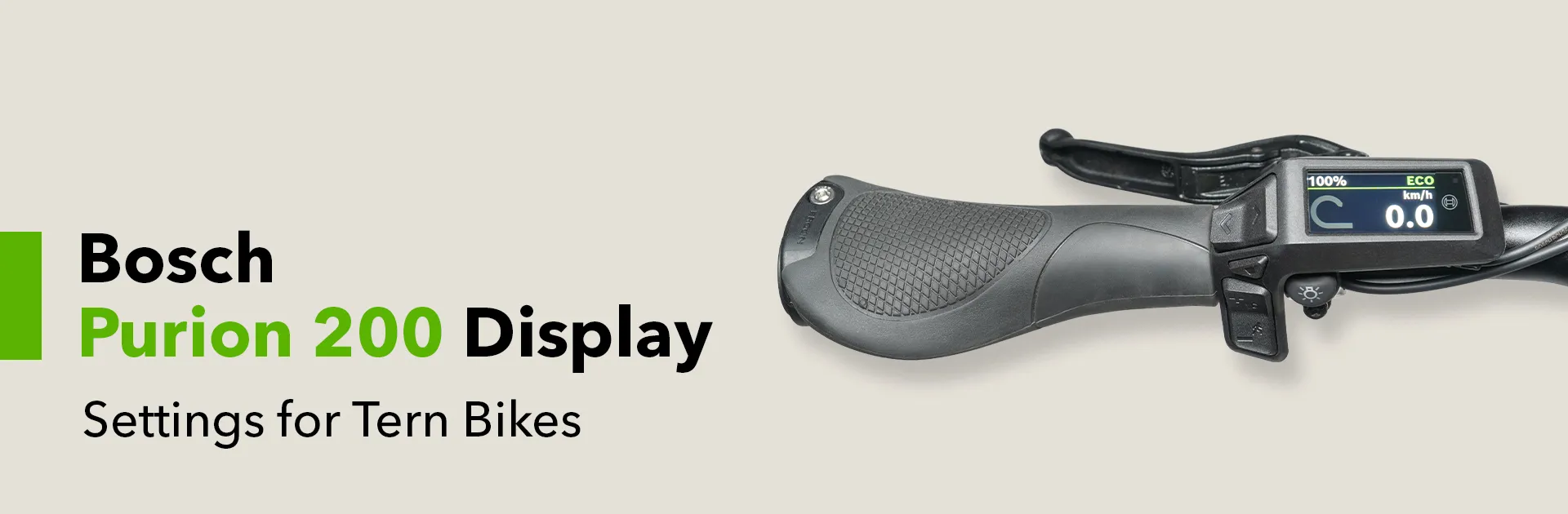
Bosch Purion 200 Display Settings for Tern Bikes
This article refers to version 1.28 of the eBike Flow app and the Purion 200 display for Tern electric bikes with the Bosch Smart System. For information on the Purion display for the Bosch eBike System 2, click here. Check the Bosch website for the latest updates.
Contents
- What is the Purion 200?
- What information does the Purion 200 show?
- How to use the Purion 200?
- What is the eBike Flow app?
- More information
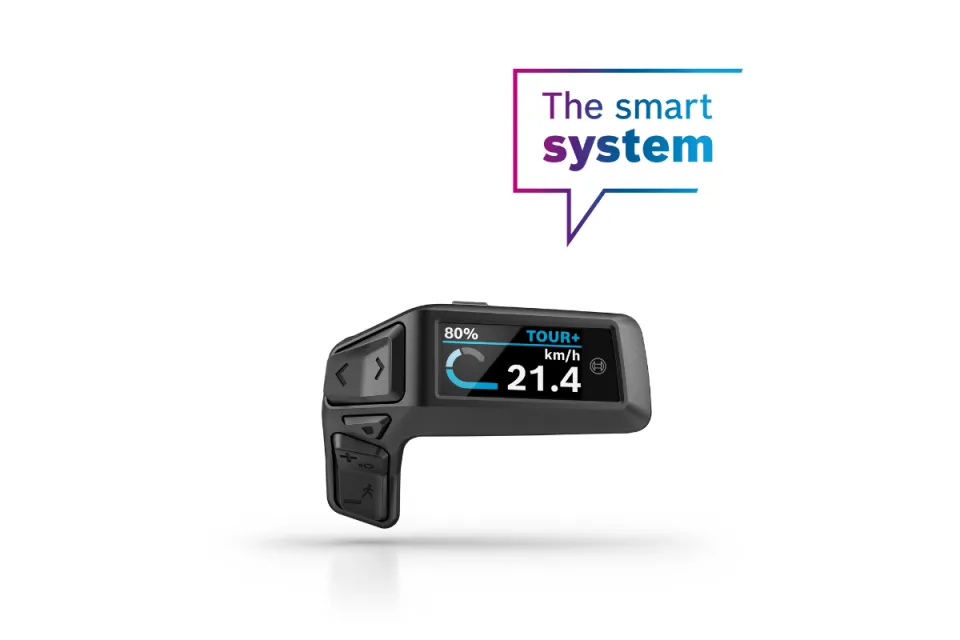
Bosch Purion 200 ebike display - available on select Tern ebikes
What is the Purion 200?
The Purion 200 is a compact ebike display and control unit that’s part of the Bosch Smart System. Here are its main features:
- Smart System integration: Connects via Bluetooth to the eBike Flow app on your smartphone for ride data, over-the-air updates, and customization.
- Compact size: Small, minimalist, and mounted on the handlebar, it combines both display and control unit in one device.
- Color display: The Purion 200 has a clear color screen that’s easy to read in different lighting conditions.
- Simple controls: Thumb-operated buttons let you change assist levels, toggle lights, and access ride data without taking your hand off the handlebar.
What information does the Purion 200 show?
Assist levels
Green is for Eco, blue is for Tour, purple is for Auto, and red is for Turbo or Cargo. These names vary per Tern bike platform.
Ride stats
- Distance: Distance covered in your last ride.
- Riding time: The time you’ve spent on your last ride.
- Range: Corresponds with the assist mode you’re in while you’re viewing this information. For example, your range in Eco mode might be 50 km and 40 km in Tour mode.
- Average speed: The average speed during your last ride.
- Maximum speed: The maximum speed during your last ride.
- Total distance: The total distance you have covered in all of your rides.
- Other information and functions: Time, Headlight, Walk Assistance, Hill Hold.
You can add or remove more data via Settings > My eBike > Display configuration on the Flow app.
How to use the Purion 200?
Basic functions
- Turning on/off the system: The on/off button is at the top of the display.
- Switching between assist levels: Press (+) to increase your assist level, and (-) to decrease it.
- Browsing the display or Settings menu: Use the left/right buttons (</>) to browse the display menu at any assist level or when you’re viewing the settings menu.
- Selecting items: Press the Select button (♦) to confirm any item on the display menu.
Activating Walk Assist and Hill Hold
- Step 1: To activate Walk Assistance, press the (-) button for over 1 second, and keep it pressed while you move your bike forward or backward or tilt it sideways within 10 seconds.
- Step 2: Keep your thumb on the (-) button and push your bike. Walk Assistance is automatically turned off if you release the (-) button and do not press it for 10 seconds. If you press the button again within 10 seconds, then Walk Assistance will be reactivated.
Customizing the display layout and adding screens
You can customize the display layout and add screens under Settings > My eBike > Display configuration in the Flow app. It's possible to select a different layout for each screen.
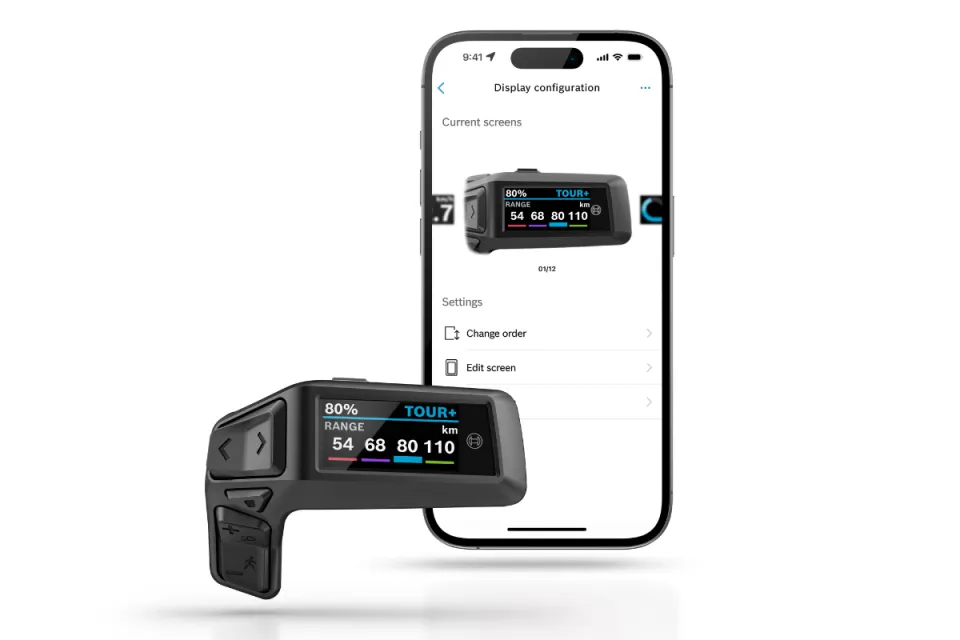
You can change the Purion 200’s layout via the Flow app
Can I remove the Purion 200 from my bike?
No, it is not possible to remove the Purion 200 from your bike.
What is the eBike Flow app?
The eBike Flow app from Bosch serves as the central hub for your bike’s settings and features. When paired with the Purion 200 display, it lets you customize your ride and enhances security through the eBike Lock. On certain Tern models, the optional ConnectModule adds GPS tracking and an eBike Alarm for extra protection—giving you greater control, comfort, and peace of mind.
The eBike Flow App is available to both Android and Apple users and allows you to download new features via over-the-air updates. For a more thorough explanation, please refer to our Flow app settings guide.
How do I connect the eBike Flow app to my bike and display?
To use the eBike Flow App, you first need to create an account with Bosch.
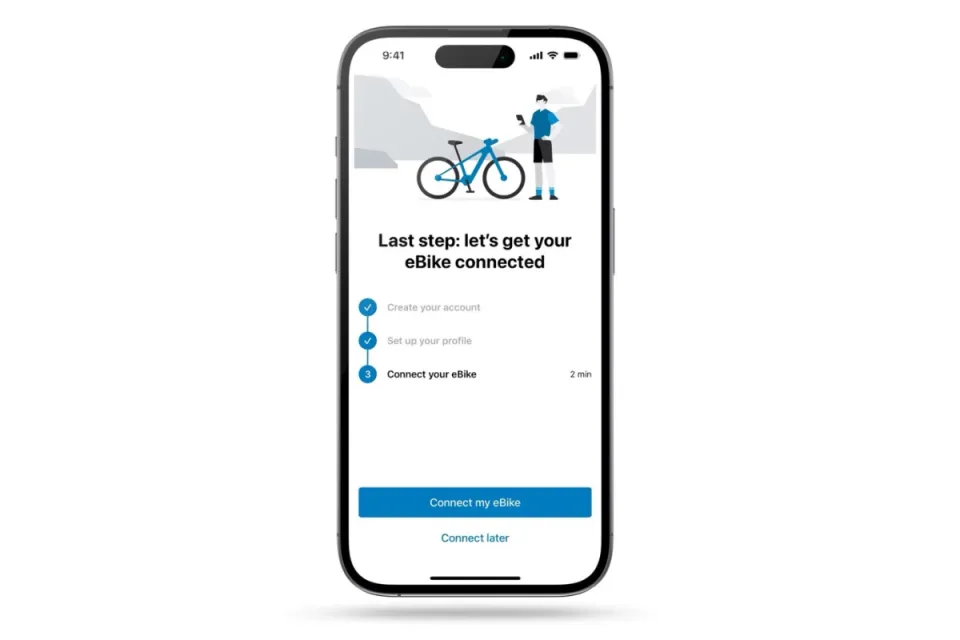
eBike Flow App welcome page: This is where your app setup starts
Step 1: Set up your Bosch user profile
- Go to the Google Play Store or App Store to download the app.
- Once the app is downloaded, tap Get Started.
Create your account with Bosch: Follow the steps in the app. If you already have an account, you will be asked to log in with your SingleKey ID.* - Type in your first name. The system will use your name as your bike’s name.
- If the sign-up or sign-in is successful, you should now be on the app’s home screen.
*Since April 2023, Bosch has used SingleKey as a platform for customers to access their Bosch account—you can still log in with your Bosch ID credentials.
Step 2: Connect the Flow app to your bike
Ensure that your phone’s Bluetooth function is still on. Then:
- Go to Connect eBike on the app home screen.
- Tap Purion 200.
- Make sure you’re standing right by the bike. Tap Continue.
- Press and hold the on/off button on the Purion 200, and the top LED should start flashing.
Step 3: Connect the Purion 200 to the Smart System
Remain in the Flow app.
- Go to Settings > My eBike > eBike info/Components.
- Select Add new device > Purion 200.
- Press and hold the Bluetooth button on the back of the Purion 200 until it shows Pairing Mode. After releasing the Bluetooth button, it will take some 30 seconds for the Purion 200 to be detected.
- Tap Connect to confirm the pairing process.
Flow+ subscription
Flow+ is an optional subscription service that gives you access to advanced features like the eBike Alarm, GPS tracking, eBike Sharing, and Battery Lock. Which features you will have access to depend on whether your bike has a ConnectModule. If your bike has a ConnectModule, activating the eBike Lock and Alarm gives you a free 12-month Flow+ trial. Without a ConnectModule, you’ll enjoy a 1-month trial instead.
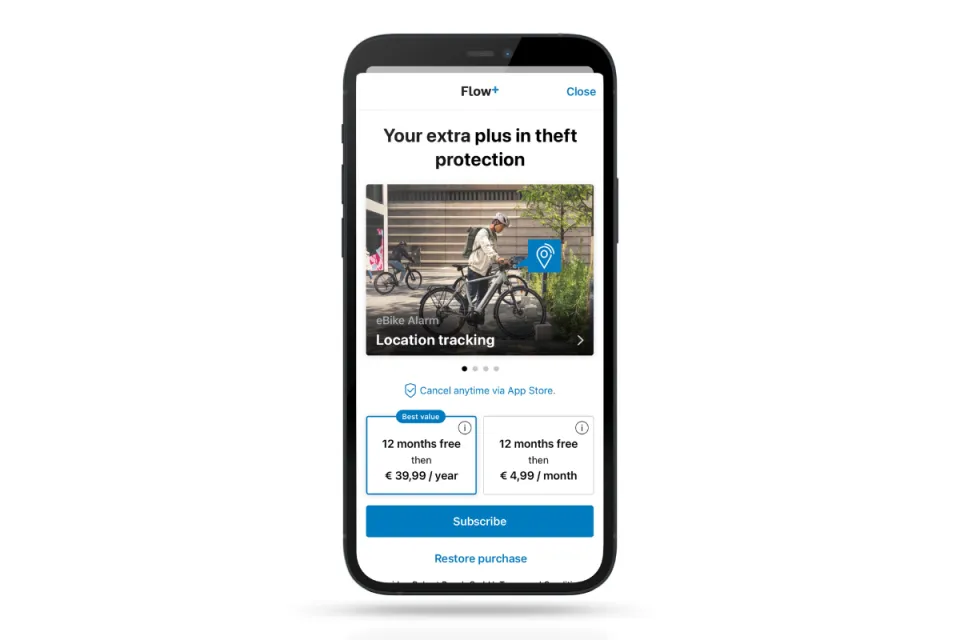
Flow+ subscription sign-up page—subscription prices vary per region
After the trial period, Flow+ will automatically continue as a paid subscription—billed monthly or yearly, with prices varying by country. You’re free to cancel anytime, as long as it’s at least 24 hours before the next billing cycle. Visit the Bosch website to learn more about Flow+ and its services.
More information
To learn more about the Purion 200’s features, check out the official Bosch manual and the Bosch website for updates.