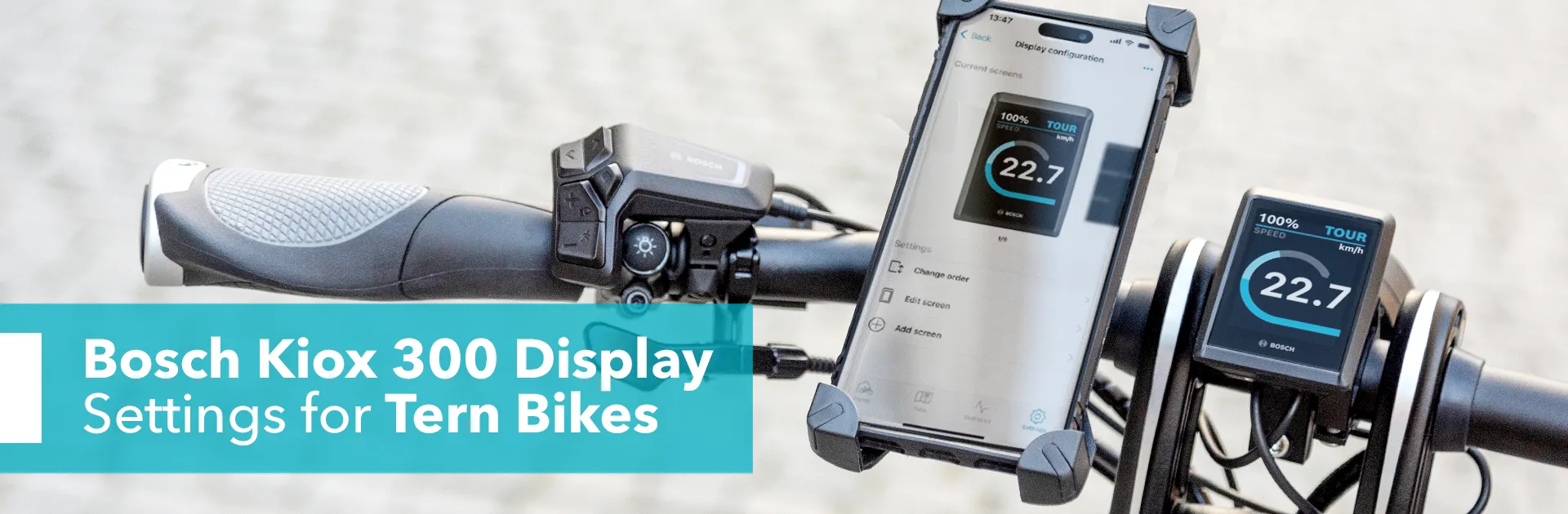
Bosch Kiox 300 Display Settings for Tern Bikes
This article refers to version 1.25 of the Bosch eBike Flow app. For the latest updates, please check the Bosch eBike Systems website.
Some Tern e-bikes come equipped with the Bosch Kiox 300 display, which is key to operating the Bosch Smart System. The system is like the "brain" of your e-bike, packed with features to enhance your riding experience. In this guide, we'll take you through the basics of how the LED Remote, Kiox 300 display, and the eBike Flow App work together to make the most of your ride.
Contents
- What is the Kiox 300 display?
- Getting Started: How to Use the LED Remote
- How to Use the Kiox 300 Display
- How to Create a Bosch User Profile and Connect the Flow App to Your Bike
- How to Customize the Display Layout and Add Screens
- Flow+ Subscription
- More Information
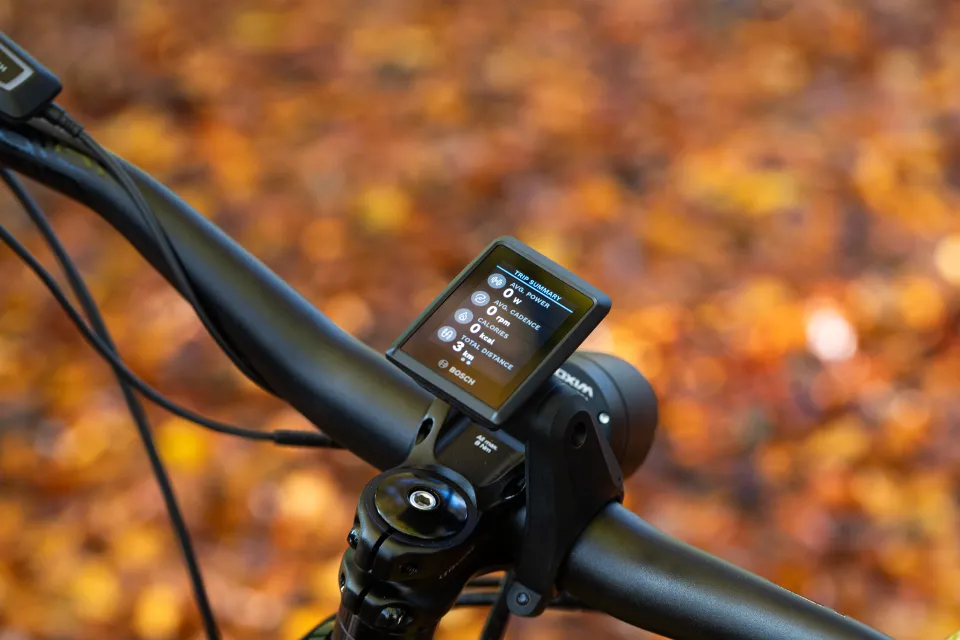
Kiox 300 on the Tern Orox adventure e cargo bike handlebar
What is the Kiox 300 display?
The Kiox 300 is a display unit designed for the Bosch Smart System eBike ecosystem. It provides you with key ride data, such as speed, battery level, and range, while also integrating with the eBike Flow App for navigation and fitness tracking.
Key Features
- Compact and Colorful Display: Small, full-color screen with a clean user interface.
- Smart System Integration: Works with Bosch’s Smart System for over-the-air updates and customization via the eBike Flow App.
- Navigation & Fitness Tracking: Can show turn-by-turn directions and sync fitness data with third-party apps like Apple Health, Komoot, or Strava.
- Mounting Flexibility: The display can be easily removed or adjusted for different viewing angles.
Getting Started: How to Use the LED Remote
The Kiox 300 is controlled by the LED Remote, which is conveniently located by the left-hand grip. This allows for easy access and minimal distraction while riding, as it can be operated with just your left thumb.
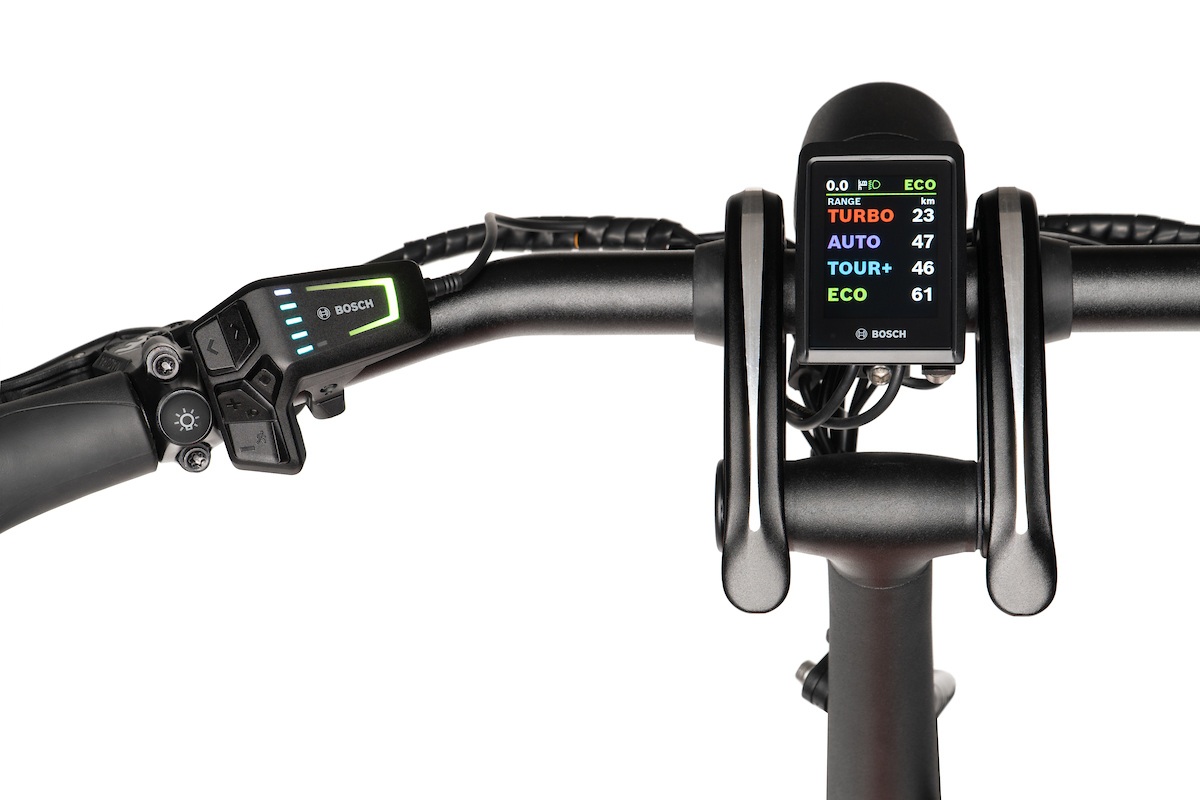
The LED Remote and Kiox 300 display on the Tern HSD Gen 2 handlebar
When you switch between the assist levels, the LED light on the remote will change color to indicate which level you’re in. Green is for Eco, blue for Tour, purple for Auto or eMTB, and red for Turbo or Cargo—the names of the levels depend on the bike platform.
The Auto and eMTB assist levels automatically adjust how much assistance the motor provides based on your riding conditions, meaning you won’t need to exert more effort or switch modes when hitting a strong headwind, for example.
LED Remote Functions and Buttons
- Turning on/off the system: The on/off button is at the top of the LED Remote.
- Switching between assist levels: Press (+) to increase your assist level, and (-) to decrease it.
- Browsing the Kiox 300 display menu: Use the left/right buttons (</>) to browse the Kiox 300 display menu at any assist level.
- Browsing the Settings menu: Use the (+) and (-) buttons to browse the screens in Settings mode.
- Selecting items: Press the diamond-shaped Select button (♦) to select any item on the display menu.
How to Use Walk Assistance
The Walk Assistance function engages the motor to help you while pushing your bike, which is particularly useful when transporting heavy items or ascending slopes.
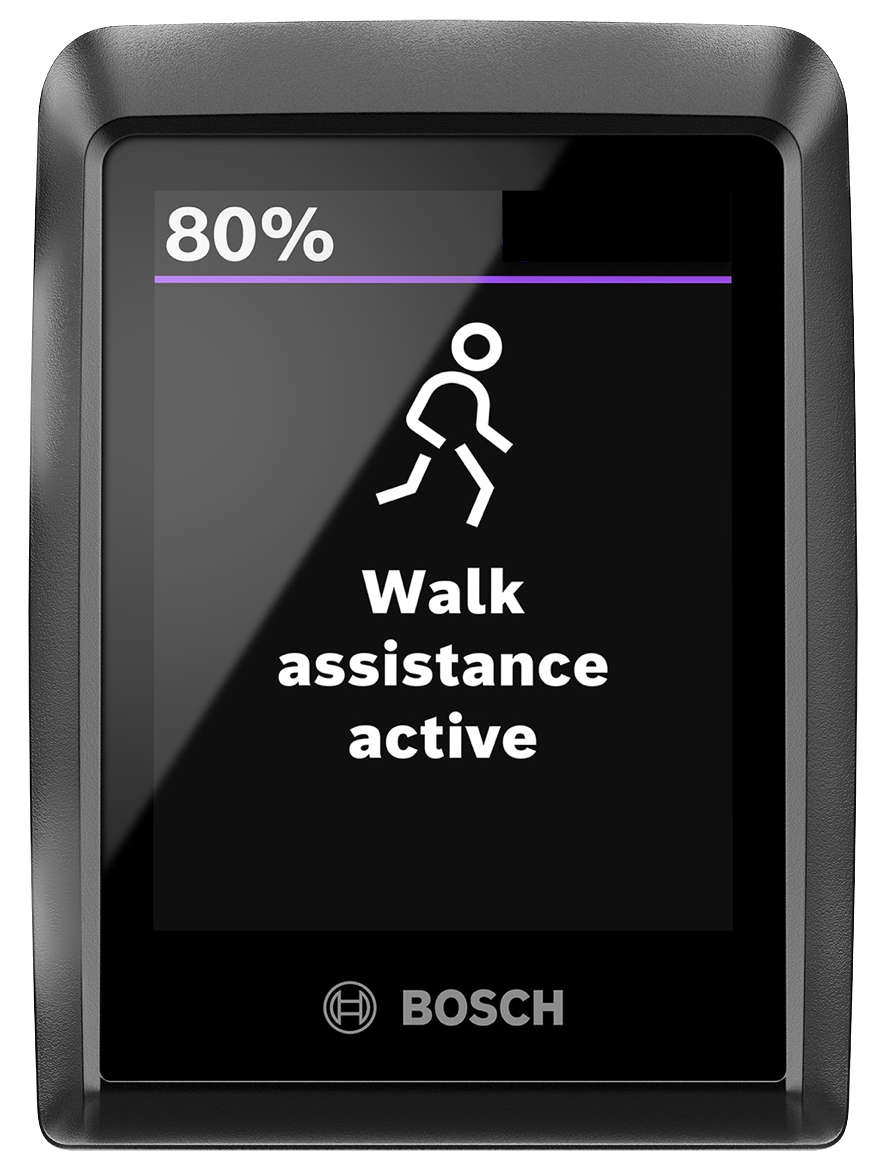
Walk Assistance screen
Step 1
To activate Walk Assistance, press the (-) button for over 1 second, move your bike forward or backward, or tilt it sideways within 10 seconds.
Step 2
Keep your thumb on the (-) button and push your bike. Walk Assistance is automatically turned off if you release the (-) button and do not press it for 10 seconds. If you press the button again within 10 seconds, then Walk Assistance will be reactivated.
How to Use Hill Hold
For extra safety, the Bosch Smart System has Hill Hold to automatically lock the wheels for a moment if the bike starts to move backward. This function gives you a few seconds to regain control of your bike and prevent it from rolling away.
Step 1
Once Walk Assistance is activated, release the (-) button to activate Hill Hold.
Step 2
To turn off Hill Hold, press the (-) button again and hold it to return to Walk Assistance mode. To turn off Walk Assistance, release the (-) button and do not move it for 10 seconds.
How to Use the Kiox 300 Display
The Kiox 300 display uses a high-resolution color display with a structured layout to show the assist mode, speed, cadence, and distance traveled. It does not have a touchscreen or physical buttons—it can only be operated using the LED Remote.
What information is displayed on the Kiox 300?
Below is a selection of information that is displayed on the Kiox 300. There are many more data and statistics that you could add or remove, which you can do through Settings > My eBike > Display configuration.
- Assist levels: Green is for Eco, Blue is for Tour, purple is for Auto or eMTB, and red is for Turbo or Cargo. These names vary per Tern bike platform.
- Ride stats:
- Distance: Distance covered in your last ride.
- Riding time: The time you’ve spent on your last ride.
- Range: Corresponds with the assist mode you’re in while you’re viewing this information. For example, your range in Eco mode might be 50 km and 40 km in Tour mode.
- Average speed: The average speed during your last ride.
- Maximum speed: The maximum speed during your last ride.
- Total distance: The total distance you have covered in all of your rides.
- Other information and functions:
- Time
- Headlight
- Walk Assistance
- Hill Hold
How to change the Kiox 300 display settings
When switching between screens on the Kiox display, you will see a row with a tiny square followed by dots at the bottom. These indicate the number of screens that you can horizontally toggle between using the (</>) buttons.
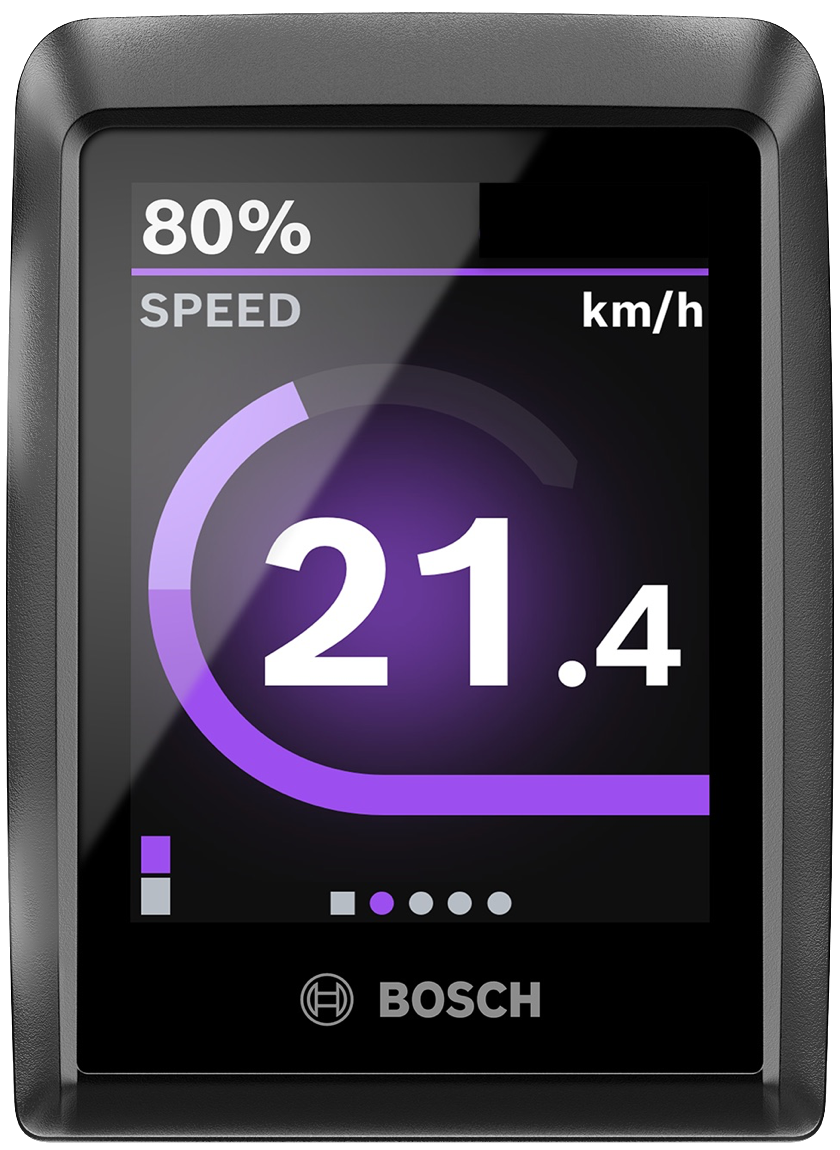
Screen with dots at the bottom, visible when toggling left/right
The square is at the very left of the row and indicates the ‘status screen’ of each assist level. This page has a “Settings” option; press the ♦ button to select. Use the (</>) and (+) and (-) buttons to go through any setting you wish to change or adjust and press the ♦ button to select any option.
How to remove the Kiox 300 display from your bike
We recommend that you remove the display when parking the bike to avoid tampering, damage, or theft. Pull the display downward until you can lift it to remove it. This will also automatically lock the bike. If you prefer to leave the Kiox 300 on your bike, there is also a locking screw to prevent the display from being removed from the bike.
How to (re)attach the Kiox 300 display to your bike
Step 1
Attach the display to the front edge of the display mount, ensuring it faces the direction of travel.
Step 2
Use the snap-in hook to secure the display on the mount.
Step 3
Press the rear side of the Kiox's onboard unit onto the display mount, ensuring a secure connection. Reinstalling the Kiox 300 will automatically unlock the bike and activate the motor system. It is possible to use different Kiox 300 displays on one bike.
How to Create a Bosch User Profile and Connect the Flow App to Your Bike
To use the eBike Flow App, you first need to create an account with Bosch. If you don’t have an account, you cannot personalize your eBike settings and riding experience, such as activating the eBike Lock, eBike Alarm, and GPS Tracking.
Step 1: Set up your user profile with Bosch
Please follow these steps to install the app and set up your user profile with Bosch.
- Go to the Google Play Store or Apple Store to download the app.
- Once the app is downloaded, tap Get Started.
- Create your account with Bosch: To create your account, follow the steps in the app. If you already have an account, you will be asked to log in with your SingleKey ID.*
- Type in your first name. The system will use your name as your bike’s name.
- If the sign-up or sign-in is successful, you should now be on the app’s home screen.
Once the above process is complete, let’s move on to connecting the Flow app to your e-bike. If you’d like to learn more about the eBike Flow app’s basic settings, check out this article.
*Since April 2023, Bosch uses SingleKey as a platform for customers to access their Bosch account—you can still log in with your Bosch ID credentials.
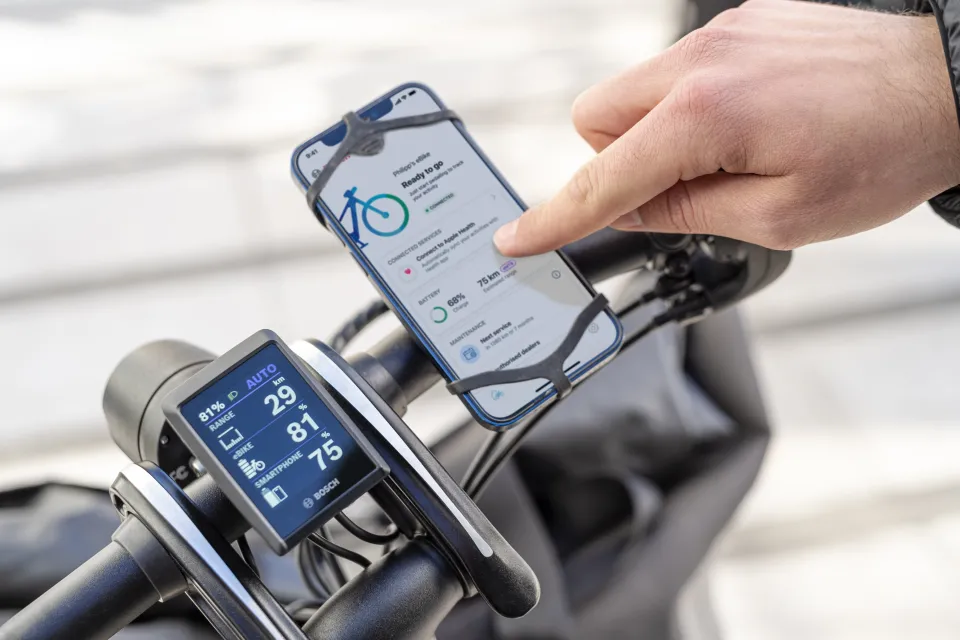
The eBike Flow App connected to the Kiox 300 display on the HSD Gen 2 e-cargo bike
Step 2: Connect the app to your bike
Ensure that your phone’s Bluetooth function is on. Then:
- Go to Connect eBike on the app home screen.
- Select LED Remote.
- Make sure you’re standing right by the bike. Tap Continue.
- Press and hold the on/off button on the LED Remote until the top LED starts flashing.
How to Customize the Display Layout and Add Screens
After you’ve downloaded the Flow app and paired it with your e bike, you can choose to customize the Kiox 300 display layout and add extra pages. This function helps you show the data that matters most to you more prominently.
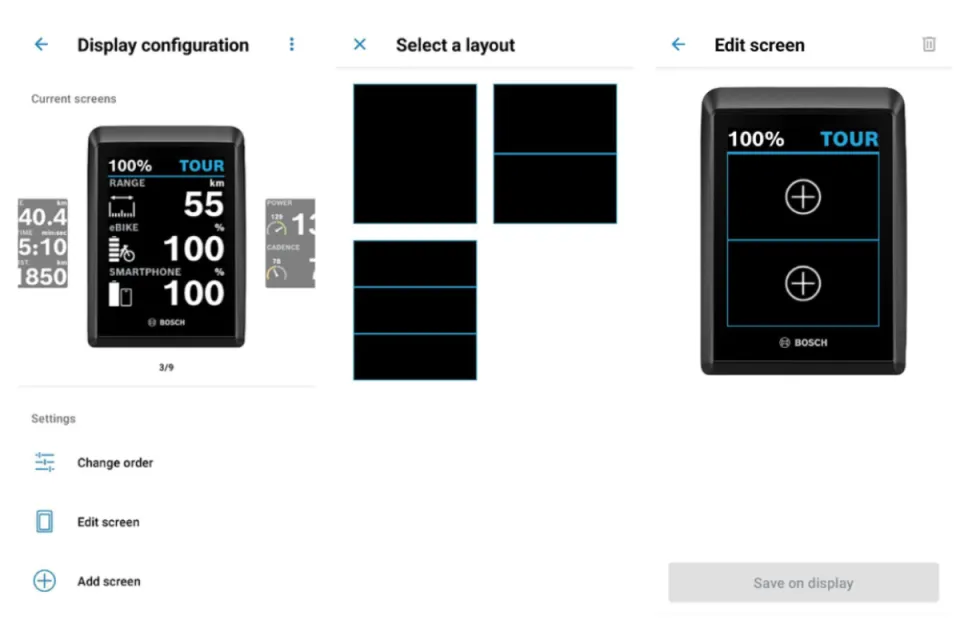
Kiox 300 display configuration options
Where can I customize the display layout?
In the Flow app, you can customize the display screens under Settings > My eBike > Display configuration.
How many options can I choose from?
You can choose from different layouts and add several screens. It's possible to select a different layout for each screen. You can add a maximum of 3 content items per screen.
Flow+ Subscription
Flow+ is an optional subscription service that gives you access to features like the eBike Alarm, current charge level, extended navigation, and additional statistics. Note that if your e bike doesn't have the ConnectModule, you'll only be able to use the navigation and statistics features.
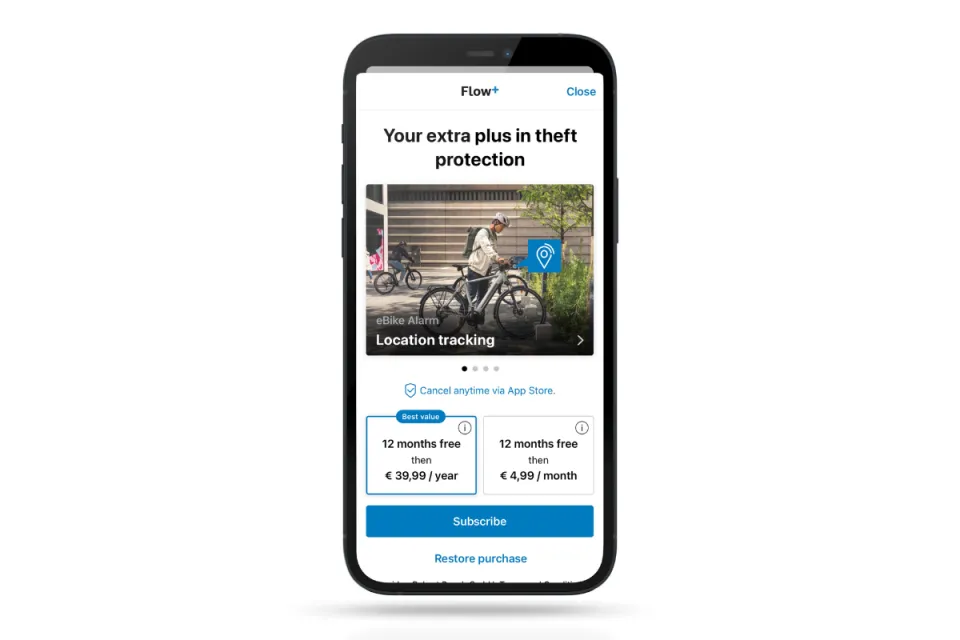
Flow+ subscription sign-up page—note that the subscription prices vary per region
If your bike has a ConnectModule, you'll automatically start a free 12-month trial of Flow+ when you first activate the eBike Lock and Alarm. If your bike does not have a ConnectModule, then this trial period is 1 month.
After the trial period, Flow+ will automatically renew to a paid subscription, and you can choose to be billed monthly or yearly. The cost of the subscription will vary based on your country. You can cancel your Flow+ subscription at any time, as long as you do so at least 24 hours before the next billing cycle.
Visit the Bosch website to learn more about Flow+ and its services. If you’d like to understand better the basic functions of the eBike Flow app for Tern cargo ebikes, we’ve got you covered with this article.
More Information
To learn more about the Kiox 300's features, check out the official Bosch Kiox 300 display manual and the Bosch website for updates. For an overview of the Bosch Smart System on Tern bikes, read our article covering its basic functions. Happy eBiking!